What is a Robots.txt File? (And Why Your Website Needs One)
Written by Habib Ur Rehman • Last Updated: November 10, 2026
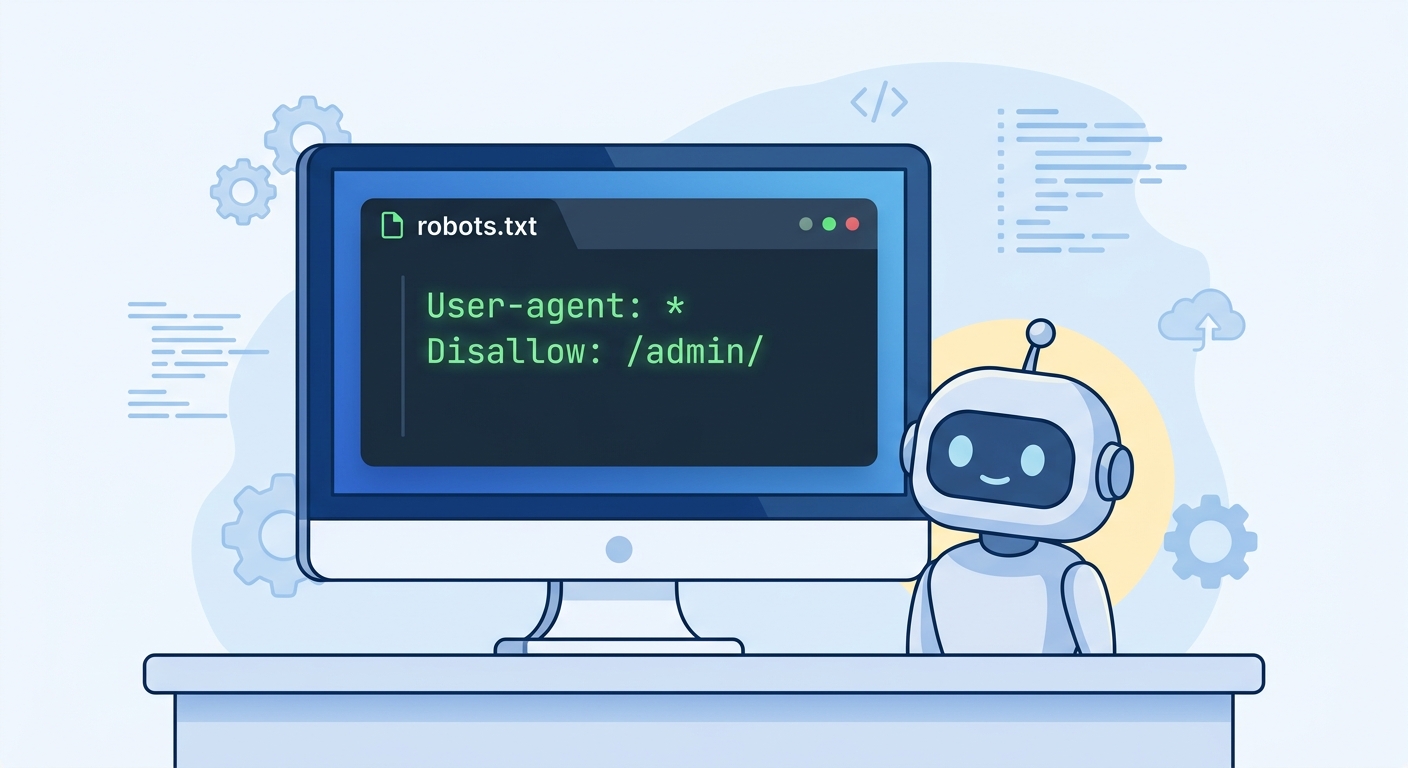
Quick Summary: A robots.txt file is a simple text file that tells search engine bots which pages on your website they can visit and which ones they should skip. It helps you control how Google and other search engines crawl your site. You place it in your website's root folder. It is not a security tool, but it is very important for good SEO.
Hello! If you have a website, you have probably heard the word "robots.txt" at some point. Maybe you saw it in a plugin like Rank Math or Yoast SEO. Or maybe you read about it on an SEO blog. But what does it actually do? And why do some people say it is very important for your website?
In this guide, I will explain everything about the robots.txt file in very simple words. I will show you how to create one, what mistakes to avoid, and how to use it to help your website rank better. I will also give you a free tool to make your own file in seconds.
What is a Robots.txt File?
A robots.txt file is a plain text file that tells web robots (also called crawlers or spiders) which pages of your website they are allowed to visit. When a search engine like Google wants to look at your website, the first thing it does is check your robots.txt file.
Think of your website as a house. The robots.txt file is like a sign on the front door that says, "You can come into the living room, but please do not go into the bedroom." The sign does not stop a burglar (a bad bot can ignore it), but it tells the friendly visitors (like Googlebot) where they are welcome.
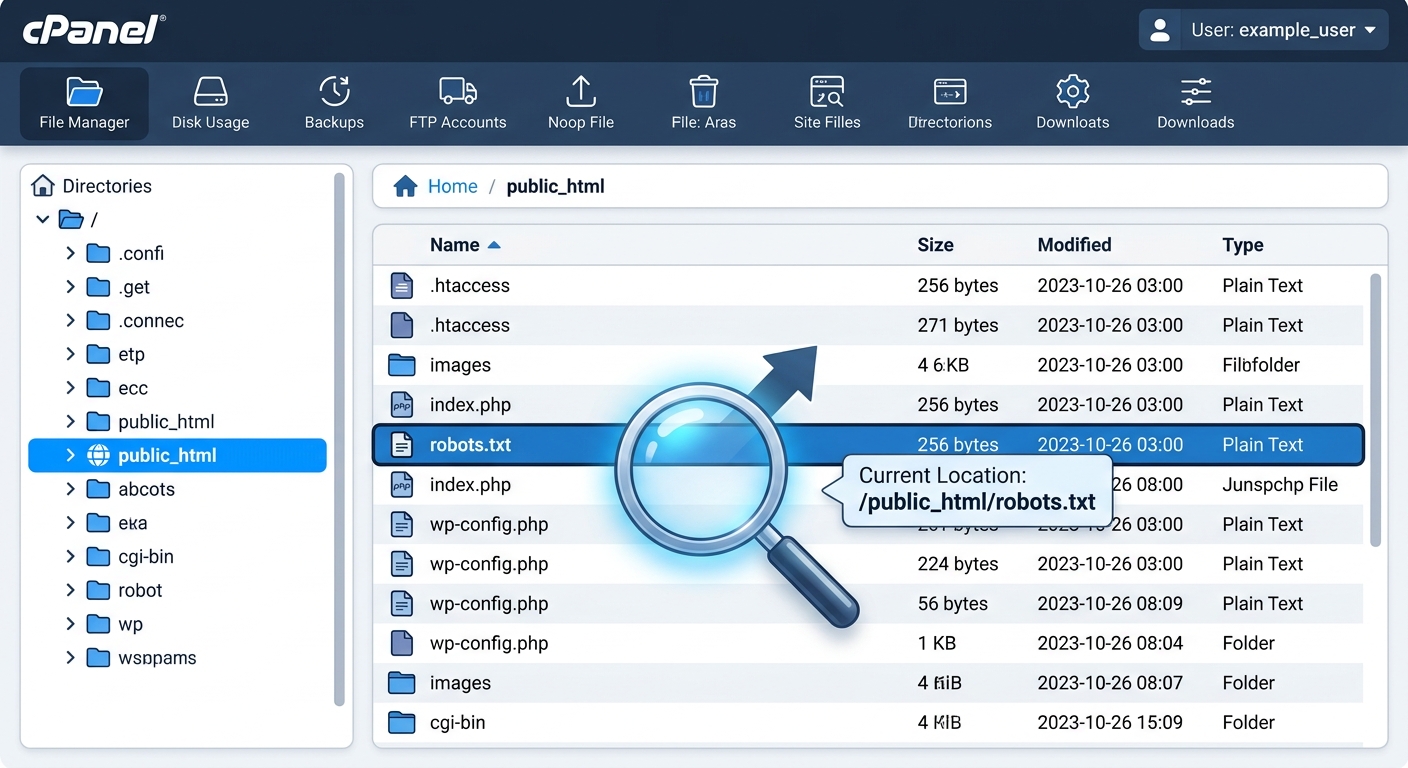
The file lives at the root of your website. For example, if your site is www.example.com, your robots.txt file must be at www.example.com/robots.txt[reference:0]. You can have only one robots.txt file per website, and it must be placed in the main folder, not in a subfolder[reference:1].
Why Does Robots.txt Matter for SEO?
You might be thinking, "If I want Google to see my website, why would I block it with a robots.txt file?" This is a common question. The answer is about control and efficiency.
1. Crawl Budget Optimization
Google can only crawl a certain number of pages on your website in a given amount of time. This is called your "crawl budget"[reference:2]. If Google wastes its time crawling unimportant pages (like your admin login page, test pages, or old product pages), it might not have time to crawl your new blog posts or important service pages.
By using robots.txt to block these useless pages, you tell Google, "Do not waste your time here. Spend your time on my best content instead." This helps Google find and index your important pages faster.
2. Avoiding Duplicate Content
Many websites have multiple versions of the same page. For example, you might have a page for /product/ and another for /product/?sort=price and another for /product/?sort=rating. Google might see all three as different pages with the same content. This is called duplicate content, and it can confuse Google.
You can use robots.txt to block these extra versions. For example, you can tell Google not to crawl any URL that contains ?sort=. This helps Google see only the main version of your page.
3. Keeping Private Folders Hidden
You might have folders on your website that are not meant for public viewing, like a folder with old backup files, test pages, or internal documents. You can use robots.txt to tell search engines not to crawl these folders. This does not make them password-protected, but it stops Google from showing them in search results.
Robots.txt Syntax: The Basic Rules
The robots.txt file uses very simple commands. You do not need to be a programmer to write one. Here are the main directives you need to know:
| Directive | What It Does | Example |
|---|---|---|
| User-agent | Tells you which robot the rule applies to. Use * to target all robots. |
User-agent: * |
| Disallow | Tells the robot NOT to visit a specific folder or page. | Disallow: /admin/ |
| Allow | Tells the robot it CAN visit a page, even if its parent folder is disallowed. | Allow: /admin/public/ |
| Sitemap | Tells search engines where to find your sitemap file. | Sitemap: https://example.com/sitemap.xml |
You can also add comments by starting a line with the # symbol. Search engines ignore these lines, but they are useful for you to remember what each rule does[reference:3].
Robots.txt Examples (Copy and Paste)
Here are three common examples you can use as a starting point.
Example 1: Allow Everything (Default)
This is the most common setup. It tells all search engines they can crawl your entire website.
User-agent: *
Allow: /

Sitemap: https://seoreviewkit.com/sitemap.xml
Example 2: Block a Specific Folder
This is useful if you have a folder like /admin/ or /test/ that you do not want Google to see.
User-agent: *
Disallow: /admin/
Disallow: /test/

Sitemap: https://seoreviewkit.com/sitemap.xml
Example 3: Block Specific Search Engines
You can block a specific bot by naming it. For example, you can block GPTBot (the bot that trains ChatGPT) from using your content.
User-agent: GPTBot
Disallow: /

User-agent: *
Allow: /

Sitemap: https://seoreviewkit.com/sitemap.xml
How to Create a Robots.txt File (Step by Step)
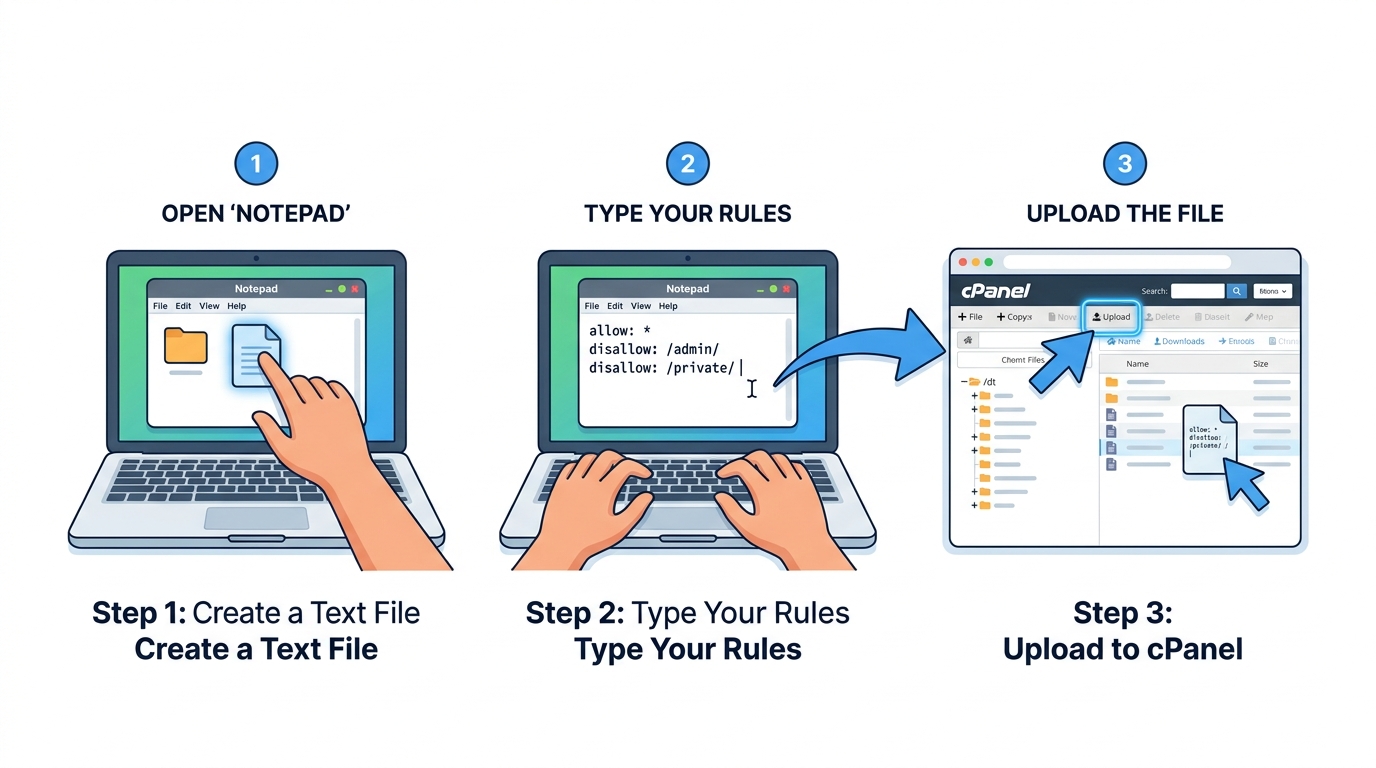
Creating a robots.txt file is very easy. You do not need any special software. Here is how to do it:
Step 1: Open a Plain Text Editor
Use a simple text editor like Notepad on Windows or TextEdit on Mac. Do not use Microsoft Word or Google Docs, because they add extra formatting that can confuse search engines[reference:4].
Step 2: Write Your Rules
Copy one of the examples above and paste it into your text editor. Change the sitemap URL to your own website's sitemap.
Step 3: Save the File
Save the file as robots.txt (all lowercase). Make sure the encoding is set to UTF-8 if your editor asks[reference:5].
Step 4: Upload to Your Website Root
Use your hosting control panel (like cPanel) or an FTP client to upload the file to the root directory of your website. For most sites, this is the public_html folder. The file must be at www.yourdomain.com/robots.txt, not inside a subfolder like /wp-content/[reference:6].
Step 5: Test Your File
Open your browser and go to www.yourdomain.com/robots.txt. You should see the text you wrote. If you see a 404 error, the file is not in the right place.
Robots.txt for WordPress Users
If your website is built on WordPress, you have two options. You can create the file manually (as shown above), or you can use an SEO plugin.
Plugins like Rank Math and Yoast SEO have a built-in robots.txt editor. You can find it under Tools → File Editor in Yoast, or under Rank Math → General Settings → Edit robots.txt. This is easier because the plugin handles the upload for you[reference:7].
However, be careful. If you switch SEO plugins later, your custom rules might be lost. It is always good to know how to create the file manually so you can restore it if needed.
Common Robots.txt Mistakes to Avoid
Many website owners make small mistakes with their robots.txt file that can cause big problems. Here are the most common ones:
Mistake 1: Using "Disallow: /" on a Live Site
The command Disallow: / tells all search engines to stay away from your entire website. This is useful for a test site, but if you accidentally leave it on your live site, Google will stop crawling your pages. Your website will disappear from search results[reference:8].
Mistake 2: Blocking CSS and JavaScript
Google needs to see your CSS and JavaScript files to understand how your page looks. If you block these files in robots.txt, Google might see a broken version of your page and rank it lower[reference:9].
Mistake 3: Thinking Robots.txt Removes Pages from Google
This is the biggest confusion. Robots.txt controls crawling, not indexing. If you use Disallow to block a page, Google will not crawl it. But if other websites link to that page, Google can still show the URL in search results, even though it has not read the page content[reference:10]. To truly remove a page from Google, you need to use a noindex meta tag or the X-Robots-Tag HTTP header[reference:11].
Mistake 4: Treating Robots.txt as a Security Tool
Robots.txt is a public file. Anyone can read it by visiting yoursite.com/robots.txt. It does not protect your private data. If you have sensitive files, use password protection instead[reference:12].
A Note from the Developer
"When I built my first website, I did not know what a robots.txt file was. I did not have one. One day, I noticed that Google was crawling my admin login page and my test pages. It was wasting time on pages that did not matter. I created a simple robots.txt file to block those pages. Within a few weeks, my important blog posts were being indexed faster. It was a small change, but it made a big difference." — Habib Ur Rehman
Frequently Asked Questions
What happens if I don't have a robots.txt file?
If you do not have a robots.txt file, search engines will crawl your entire website. This is fine if you want every page to be found. But if you have private or unimportant pages, creating a robots.txt file helps search engines focus on your best content[reference:13].
Can robots.txt block AI crawlers like ChatGPT?
Yes. AI companies like OpenAI use bots such as GPTBot to scan websites. You can block them by adding their user-agent name to your robots.txt file[reference:14]. For example, User-agent: GPTBot followed by Disallow: /.
Does robots.txt affect my Google ranking?
Robots.txt itself does not directly boost your ranking. But by controlling what Google crawls, you help Google find your important pages faster. This indirectly helps your SEO. A well-maintained robots.txt file is a sign of a healthy website.
Where can I find my website's robots.txt file?
Open your browser and go to www.yourdomain.com/robots.txt. If you see a page with text, that is your robots.txt file. If you see a 404 error, you do not have one yet.
Create Your Robots.txt File in Seconds (Free Tool)
If you do not want to write the file manually, you can use our free Robots.txt Generator. Just choose the rules you want, and the tool will create a ready-to-use file for you. You can copy it and upload it to your website. It takes less than one minute.
Explore More Free SEO Tools
Final Words
A robots.txt file is a small file, but it has a big job. It tells search engines where to go and where not to go on your website. It helps Google find your important pages faster. It stops Google from wasting time on useless pages. And it gives you control over your website's crawl budget.
If you do not have a robots.txt file yet, create one today. It takes only a few minutes. You can use a simple text editor or our free tool. Just make sure to avoid the common mistakes we talked about. Do not use Disallow: / on a live site. Do not block your CSS or JavaScript. And remember, robots.txt is not a security tool.
I hope this guide helped you understand what a robots.txt file is and how to use it. If you have any questions, feel free to contact us. Happy optimizing!
Written and reviewed by: Habib Ur Rehman, Full-Stack Web Developer & SEO Specialist.
Last Updated: November 10, 2026.