What is an Image Compressor?
Imagine you want to send a photo to a friend, but your phone says "File is too large." This happens because photos take up a lot of space. An image compressor is a tool that makes the photo file smaller. It does this by removing hidden, unnecessary data from the picture.
When you use our online image compressor no registration tool, you can make a 5MB photo into a 500KB photo. The best part? You won't even notice the difference in quality. The picture will still look beautiful, but it will be much easier to share and upload.
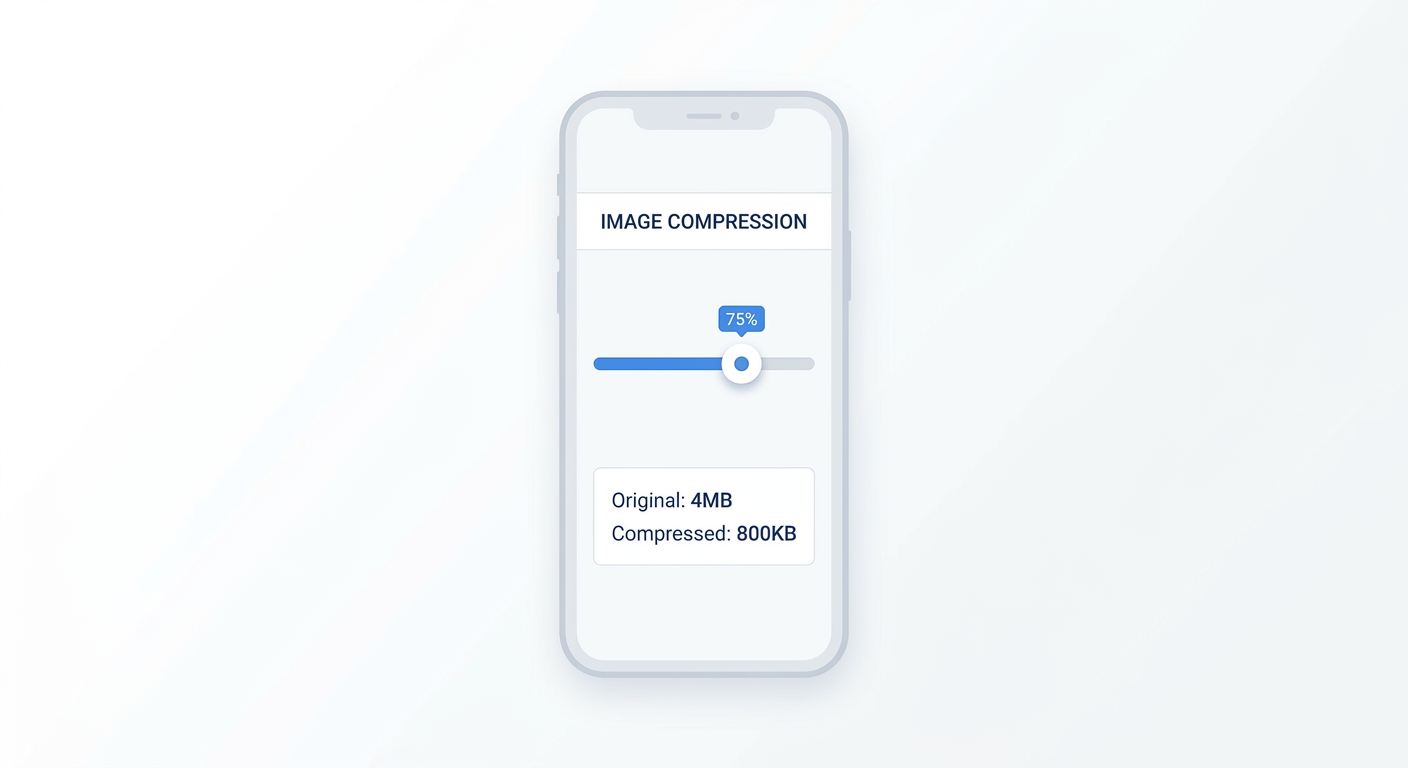
Image Compressor Tutorial: How to Use it
Using our tool is super easy. You don't need to be a computer expert. Here is a quick tutorial:
- Step 1: Look at the box above. You can click it to choose an image from your computer, or you can just drag and drop the image into the box.
- Step 2: Wait for a second. The tool will show you the original image and its size (like 2MB).
- Step 3: Move the slider. If you move it left, the image gets smaller, but it might look a bit blurry. If you move it right, it stays sharp but the size is bigger.
- Step 4: Click the "Compress Image" button.
- Step 5: Click "Download Image" to save it to your device. That's it!
Image Compressor Settings Guide
Many people ask us, "What number should I put on the slider?" It depends on what you want to do:
- For Websites (80%): Use 80%. This is the magic number. The image looks perfect, but the file size drops by 70%.
- For Emails (60%): Use 60% or 70%. Emails need smaller files. A slight drop in quality is okay for a quick look.
- For Print (100%): Keep it at 100%. If you want to print the photo, you need all the details.
How to Compress Images for Email
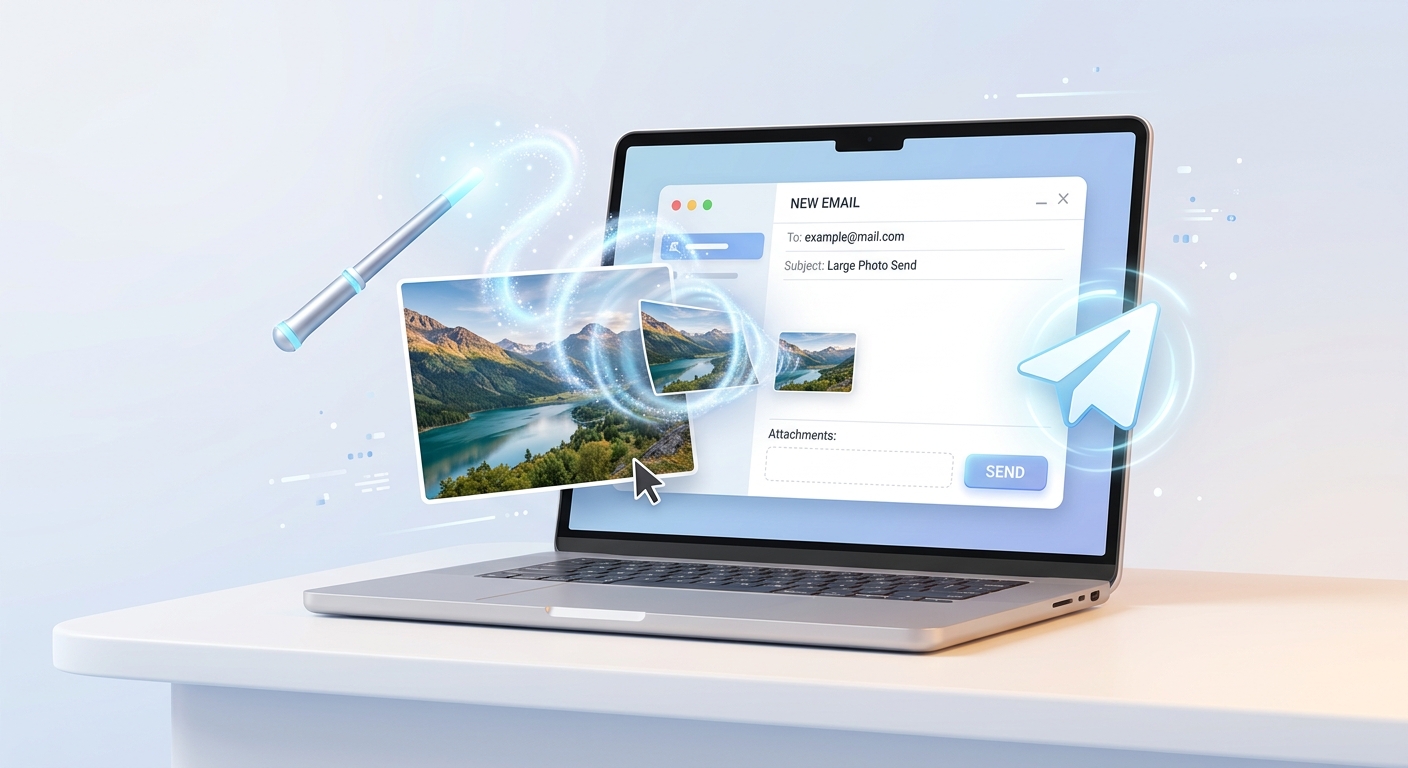
Have you ever tried to send an email, but it failed because the photo was too big? Gmail and Outlook have limits. To compress images for email, simply use our tool and set the quality to 60%. This will make the file tiny, and your email will send instantly without any errors.
Why We Have No Registration Required
Many websites ask for your email address or force you to sign up before you can use their tools. We think that is annoying. That is why our online image compressor no registration tool is completely open. You can use it 100 times a day. There are no limits, no hidden fees, and no spam emails.
Free PNG Image Compressor
PNG images are very high quality, but they are famous for being huge (sometimes 10MB or more). Our free PNG image compressor is specially designed to handle PNG files. If you are a graphic designer or a blogger, this tool will save you a lot of time.
Why is Image Compression Good for SEO?
If you have a website, big images are your enemy. Google wants websites to load very fast. If your website takes 5 seconds to load because of big images, Google will push your site down in search results. By compressing your images, your site loads in 1 second, and Google gives you a higher ranking. It's a win-win!
Image Compressor with Drag and Drop Feature
We know you want to save time. That is why we built an image compressor with drag and drop. You don't have to click "Browse" and search through your folders. Just grab the image with your mouse and drop it on our page. It is the fastest way to shrink a photo on the internet.
Explore More Free SEO Tools
Written and reviewed by: Habib Ur Rehman, Full-Stack Web Developer & SEO Specialist.
Last Updated: November 2, 2026.