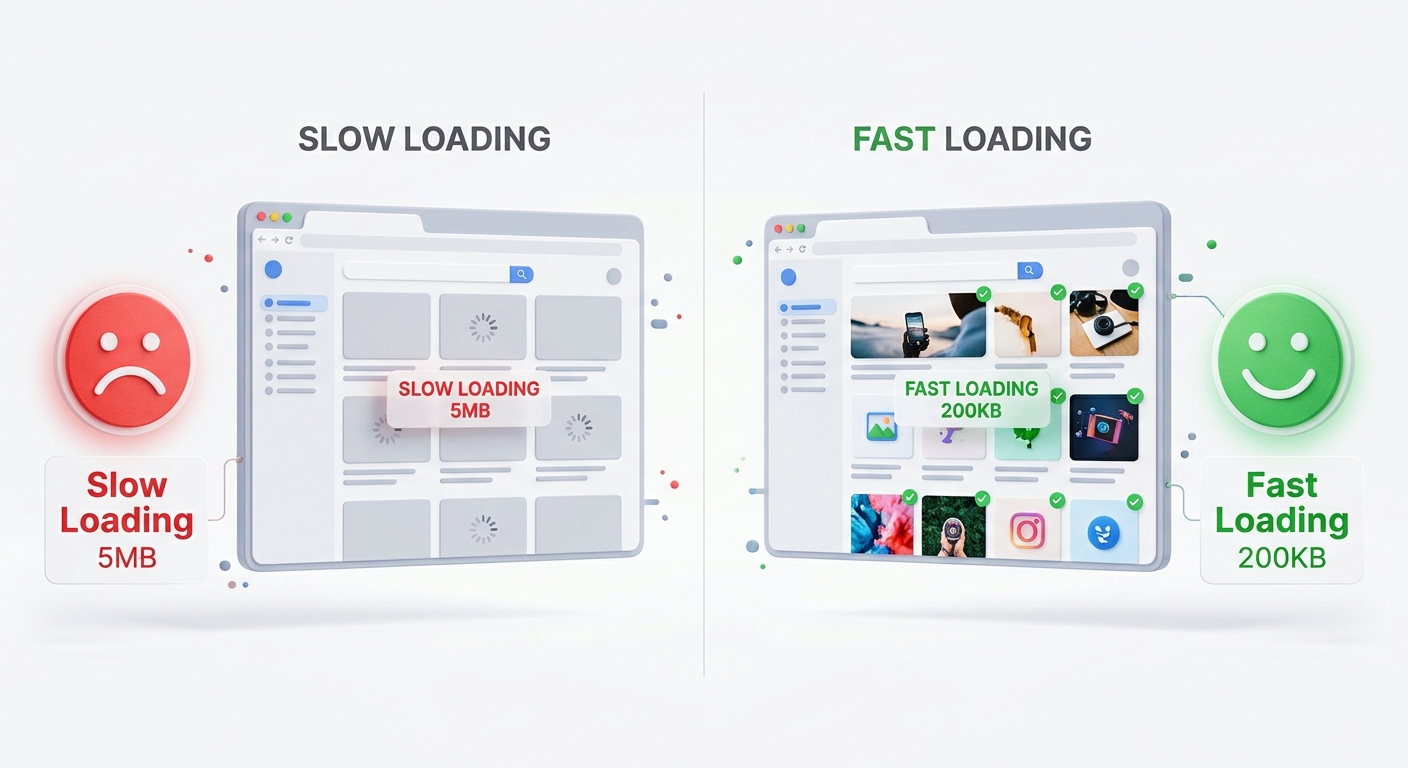
Hello! If you have a website, you probably use pictures. Pictures make a website look beautiful. But, if your pictures are too big (like 5MB or 10MB), your website will become very slow.
Google does not like slow websites. If a user clicks on your website and it takes 5 seconds to load, they will leave. Google sees this and thinks, "This website is not good." So, it pushes your website down in the search results.
Why is Image Compression Important for SEO?
Google wants to give its users the best experience. To measure this experience, Google uses a system called Core Web Vitals. One of the most important metrics in Core Web Vitals is LCP (Largest Contentful Paint).
LCP simply measures how long it takes for the biggest image on your page to load. If that image is 5MB, it will take a long time to load, and your LCP score will be terrible. By compressing your images, you can make that 5MB file into 300KB. The image will load instantly, your LCP score will be perfect, and Google will reward you with higher rankings.
- Faster Loading: When you compress images, your website loads in 1 or 2 seconds.
- Lower Bounce Rate: People don't have to wait. They stay on your site longer.
- Better Mobile Experience: Mobile internet is slower than Wi-Fi. Small images save mobile data and load faster.
What Makes Our Tool Special? (Real Facts)
There are many tools on the internet, but our online image compressor no registration tool is different. Here is exactly what it does:
- 100% Private & Secure: Unlike other websites that upload your photos to their servers, our tool uses your browser's power (HTML5 Canvas). Your images are never uploaded to the internet. They stay on your computer.
- Easy Drag and Drop: You don't need to browse through folders. Our image compressor with drag and drop lets you just grab a photo and drop it on the page.
- Live Preview: You can see the original image next to the compressed image. You can see the exact file size in KB before you download.
- Custom Quality Slider: You have full control. You can choose the exact level of compression you want, from 10% to 100%.
Image Compressor Tutorial: How to Use It
Using our tool is very simple. You don't need to be a computer expert. Here is a quick tutorial:
- Step 1: Go to the Tool. Open our Free Image Compressor.
- Step 2: Upload. Drag and drop your JPG or PNG image into the box.
- Step 3: Adjust Settings. Move the slider. If you move it to 80%, you get the best balance of small size and high quality.
- Step 4: Compress. Click the blue "Compress Image" button. The tool will process the image in less than a second.
- Step 5: Download. Click "Download Image" to save the new, smaller file to your device.
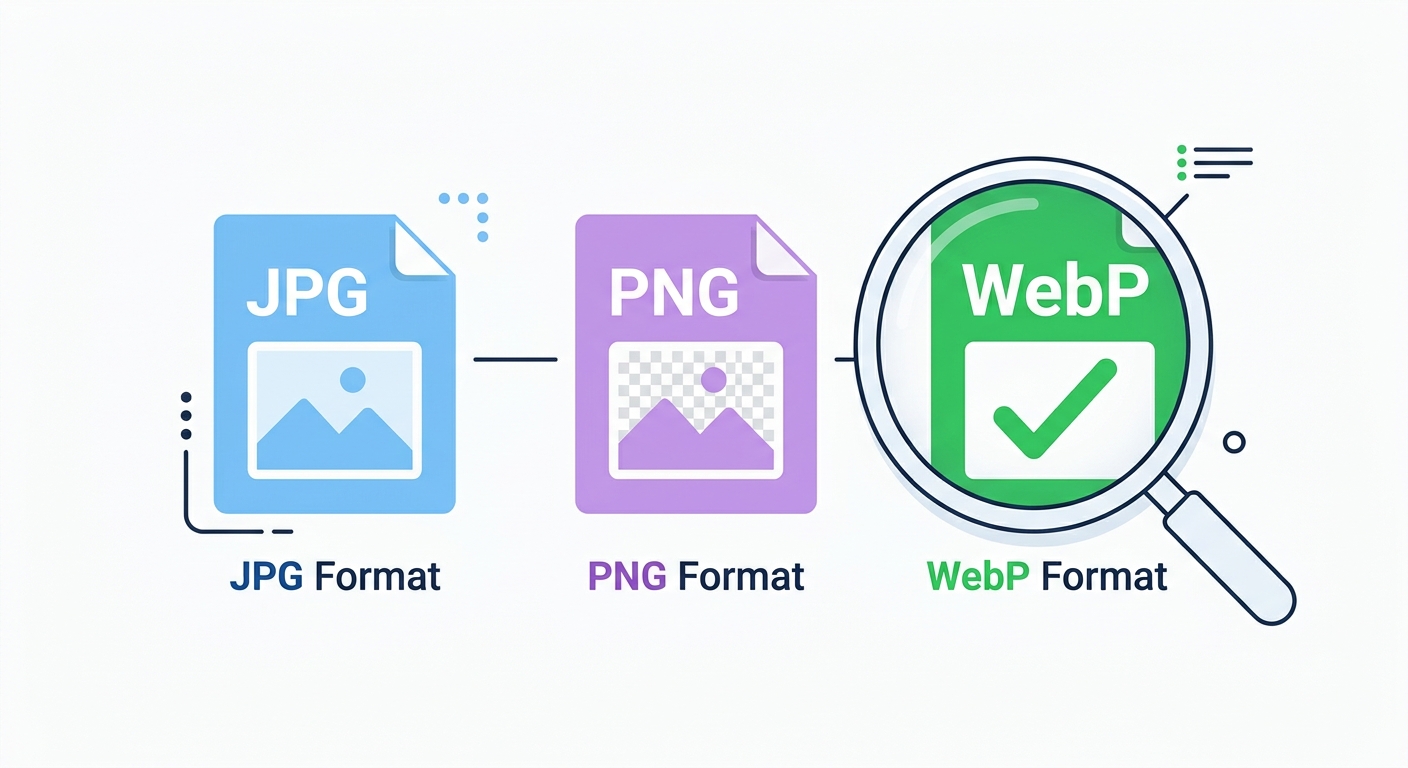
Image Compressor Settings Guide (Easy Rules)
Many people ask us, "What number should I put on the slider?" It depends on what you want to do. Here is our official image compressor settings guide:
- ✅ For Websites & Blogs (80%): This is the magic number. The image looks perfect, but the file size drops by 70%.
- ✅ For Emails (60%): Emails need smaller files. A slight drop in quality is okay for a quick look.
- ❌ Less than 50%: The image will look blurry and pixelated. Do not use this for professional websites.
Which Image Format is Best for SEO?
Not all image files are the same. When you save an image, you should choose the right format:
- JPG (JPEG): Best for normal photos. They are already small, but you can make them smaller with a compressor.
- PNG: Best for logos and pictures with clear backgrounds. But be careful, PNG files are usually very big. You must compress them using a free png image compressor.
- WebP: This is Google's favorite format. WebP images are 30% smaller than JPG. If your website allows it, always use WebP.
How to Compress Images for Email
Have you ever tried to send an email, but it failed because the photo was too big? Gmail and Outlook have limits. To compress images for email, simply use our tool and set the quality to 60%. This will make the file tiny, and your email will send instantly without any errors.
Bonus Tip: Use Alt Text
After you compress and upload your image, don't forget to add "Alt Text". Alt text is a small description of the image. Google cannot "see" images, so it reads the Alt Text to understand what the picture is about. If you have a picture of a "red coffee maker", write exactly that in the Alt Text. This is a very important part of Image SEO.
Ready to make your website faster?
Use our 100% free, private image compressor now.
Go to Image Compressor