How to Add a Favicon to Your Website (Free & Easy Guide)
Written by Habib Ur Rehman • Last Updated: November 10, 2026
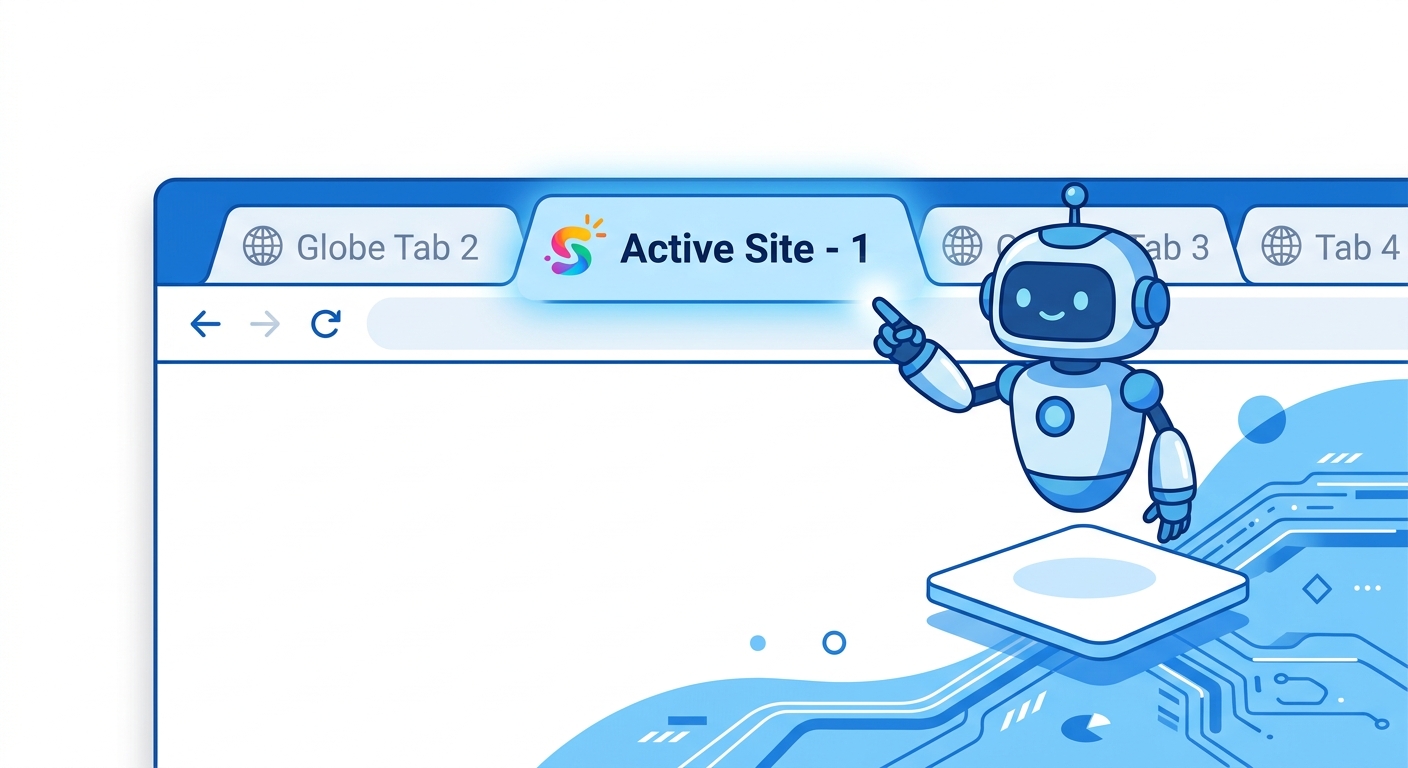
Quick Summary: A favicon is the small icon that appears in the browser tab next to your website's title. To add one, you need to create a small square image (usually 16x16 or 32x32 pixels), upload it to your website's root folder, and link to it in your HTML code. If you use WordPress or Shopify, you can do this easily from your dashboard without touching any code. A good favicon makes your website look professional and helps users find your tab quickly.
Imagine you have 15 tabs open in your browser. You are looking for that one article you were reading. Most tabs show a generic gray globe icon. But one tab has a tiny, colorful logo. You instantly click on it because you recognize it. That tiny logo is called a favicon.
Favicons are a small detail, but they make a huge difference in how professional your website looks. They build brand trust and help users navigate their chaotic browser tabs. If your website does not have a favicon yet, you are leaving money on the table.
In this guide, I will show you exactly how to add a favicon to your website. We will cover WordPress, Shopify, and raw HTML. I will also show you how to create a free favicon if you do not have one already. Let's dive in.
What is a Favicon?
A favicon (short for "favorite icon") is a small image file that is associated with a specific website or web page. It is typically displayed in the browser's address bar, next to the page title in a tab, in the bookmarks menu, and sometimes in search results.
The word comes from the early days of the internet when browsers like Internet Explorer had a "Favorites" folder. When you bookmarked a site, its icon would appear in your favorites list. Today, every major browser uses them.
A favicon is usually a square image. It can be a company logo, a symbol, or a simple letter. Because it is so small, it needs to be very simple. Complex details will not be visible. The most common file formats are .ico, .png, and .svg.
Why Does a Favicon Matter for SEO and Trust?
You might be thinking, "It's just a tiny image. How can it matter for SEO?" While a favicon is not a direct ranking factor, it plays a big role in user experience and brand trust.
1. It Builds Brand Trust
In today's digital world, people are cautious about clicking on unfamiliar links. A website without a favicon looks like a scam or a temporary project. A professional favicon signals that you are a real business that cares about details. When users see your logo in the tab, they subconsciously trust your site more.
2. It Improves User Experience
We all have too many tabs open. A favicon helps users find your tab instantly. It also helps them identify your site in their bookmarks. A better user experience leads to more returning visitors, which is a positive signal for Google.
3. It Appears in Google Mobile Search Results
Google often displays a site's favicon in mobile search results. This small image can attract more clicks, leading to a higher Click-Through Rate (CTR). A higher CTR tells Google that users like your result, which can slightly help your rankings.
What is the Best Favicon Size?
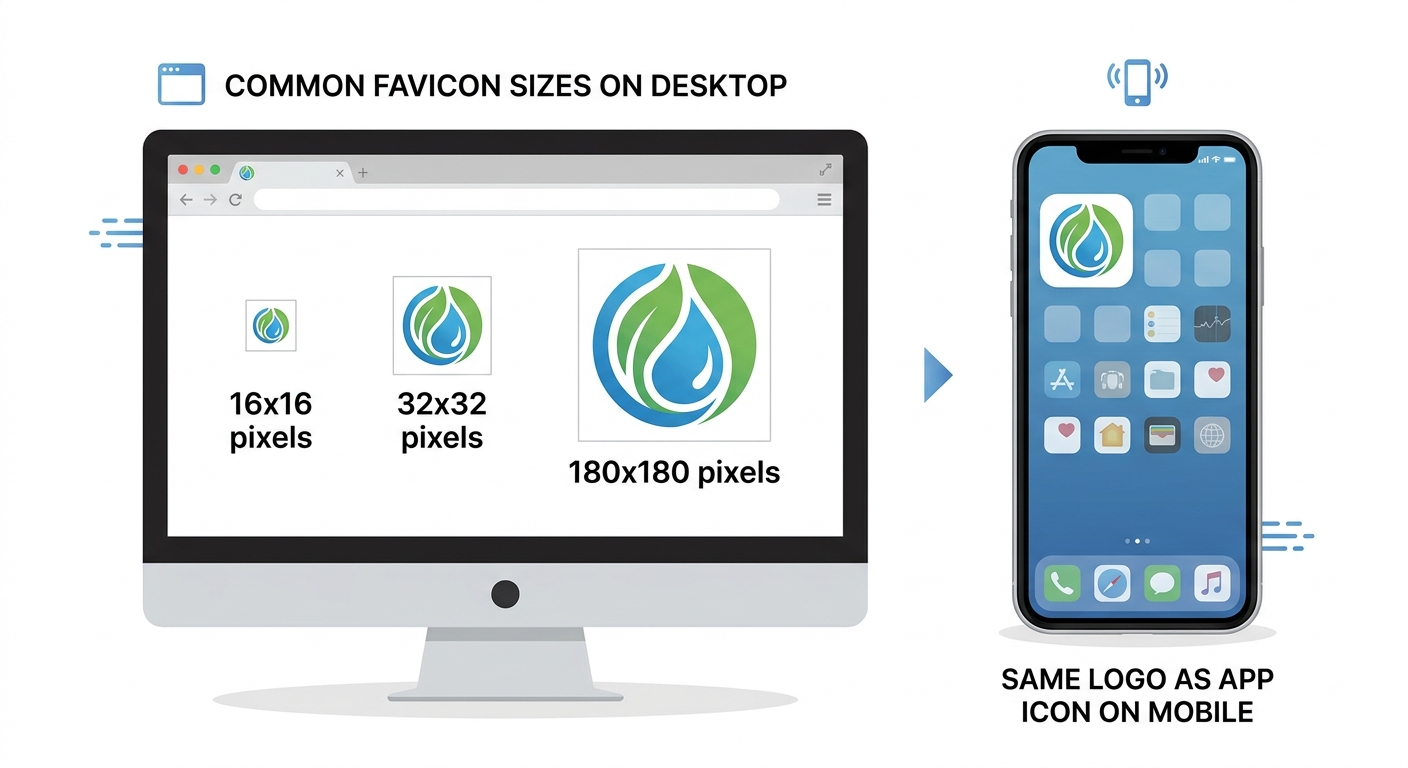
One of the most common questions is, "What size should my favicon be?" The answer is: you need a few different sizes. Here is a simple chart to help you out.
| Size (pixels) | Best Use Case | File Format |
|---|---|---|
| 16 x 16 | Standard browser tab (desktop) | .ico or .png |
| 32 x 32 | High-resolution browser tabs & bookmarks | .png |
| 48 x 48 | Windows site shortcuts | .png |
| 180 x 180 | Apple Touch Icon (iPhone/iPad home screen) | .png |
| 192 x 192 & 512 x 512 | Android devices and PWA icons | .png |
If you are short on time, just create a 32x32 PNG file. It will work for most browsers. But if you want to be perfect, create a 180x180 PNG for Apple devices as well.
How to Create a Favicon for Free
You do not need Photoshop or a graphic designer to create a favicon. You can do it yourself in a few minutes. Here are two easy ways:
Method 1: Use a Free Online Generator
There are many websites that will generate a favicon for you. You just upload an image of your logo, and they convert it into the correct sizes. You can search for "favicon generator" on Google. Popular options include Favicon.io and RealFaviconGenerator.net. They are free and very easy to use.
Method 2: Use Canva (For Designers)
If you want more control over the design, you can use Canva. Create a new design with the size "1080 x 1080 pixels" (this is a large square). Design a simple logo using your brand colors. Then, download it as a PNG file. After downloading, use a free image resizer (like our Image Compressor tool) to shrink it to 512x512 pixels.
How to Add a Favicon to Your Website
Now that you have your image file ready, let's add it to your website. The process is different depending on what platform you use.
1. How to Add a Favicon in WordPress
WordPress makes it incredibly easy. You do not need to touch any code.
- Log in to your WordPress dashboard.
- Go to Appearance > Customize.
- Look for the Site Identity tab.
- Click on the Select Site Icon button.
- Upload your PNG image.
- Click Publish.
WordPress will automatically resize your image for different devices.
2. How to Add a Favicon in Shopify
Shopify also has a simple built-in setting.
- Log in to your Shopify admin.
- Go to Online Store > Themes.
- Click the Customize button on your current theme.
- In the left sidebar, click on Theme settings.
- Click on Favicon.
- Upload your image (recommended size is 32x32px) and click Save.
3. How to Add a Favicon in Raw HTML (Custom Sites)
If you built your website with plain HTML (like our guides), you need to add a small line of code.
Step 1: Upload your favicon image to your website's root directory (usually the public_html folder) using cPanel or FTP.
Step 2: Open your website's HTML file in a text editor.
Step 3: Copy this code and paste it inside the <head> section of your page (right after the <title> tag):
<link rel="icon" type="image/png" href="/favicon.png">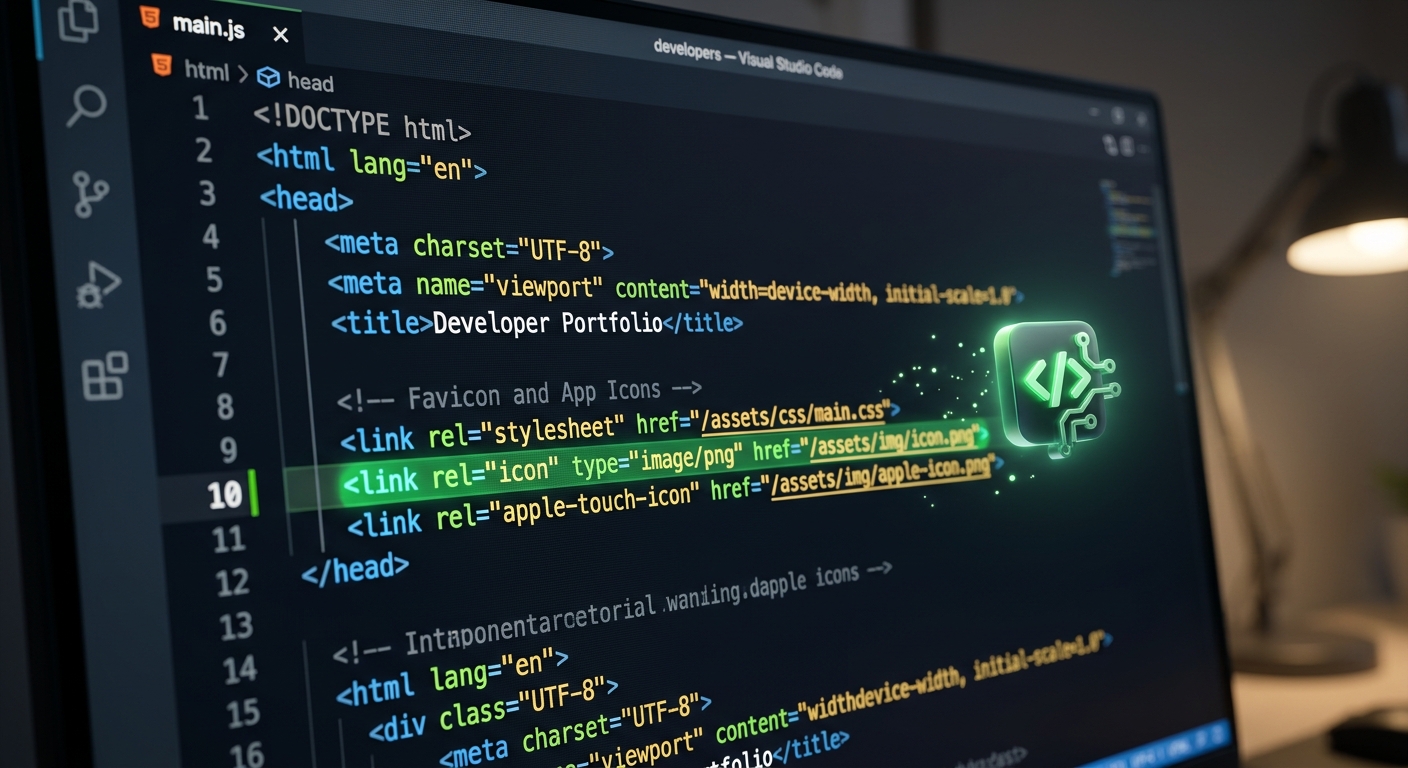
If your file is inside an images folder, change the path to href="/images/favicon.png". Refresh your browser to see the result. You might need to clear your browser cache if the old globe icon is still showing.
Common Favicon Mistakes to Avoid
Even though it is a simple task, people often make mistakes that stop their favicon from working. Here are the most common ones:
Mistake 1: Uploading the Wrong File Format
Some older browsers only accept .ico files. While modern browsers support .png, it is best to use a standard format. If your image is a JPG, convert it to PNG first. JPGs do not support transparent backgrounds, which can make your icon look ugly.
Mistake 2: Using a Large, Complex Image
If you upload a 1000x1000 pixel image with lots of text, it will look like a blurry mess when shrunk to 16x16 pixels. Keep your favicon simple. Use one or two bold letters, a simple shape, or your main logo mark.
Mistake 3: Incorrect File Path
This is the biggest reason why favicons do not show up. If you upload the file to /assets/images/favicon.png but your HTML says href="/favicon.png", it will not work. Make sure the path in your HTML exactly matches where the file is on your server.
Mistake 4: Browser Caching
You added the code and uploaded the image, but it is still not showing. Do not panic. Browsers save favicons in their cache. You need to clear your browser cache or open your site in Incognito mode to see the new icon.
A Note from the Developer
"I once spent two hours wondering why my favicon wasn't showing up on my new website. I checked the code a hundred times. It looked perfect. I finally realized that the image file was actually saved as 'favicon.png.png' because my computer hid the file extension. A silly mistake, but it cost me half my afternoon. Always double-check your file names!" — Habib Ur Rehman
Frequently Asked Questions
What is a favicon?
A favicon is a small icon that represents your website. It appears in the browser tab, bookmarks, and mobile home screens.
What size should a favicon be?
The most common size is 16x16 or 32x32 pixels for browser tabs. For mobile devices, you need a larger 180x180 pixel version.
Does a favicon help with SEO?
A favicon does not directly boost your Google rankings. However, it makes your site look more professional, which can increase clicks and brand trust.
Why is my favicon not showing up?
The most common reasons are an incorrect file path in your HTML, using an unsupported image format, or browser caching. Try clearing your cache or opening the site in Incognito mode.
Can I use a GIF as a favicon?
No. Animated GIFs do not work as favicons. Stick to PNG, ICO, or SVG formats for the best compatibility.
Conclusion
Adding a favicon to your website is a small task, but it has a big impact on your brand's professionalism. It takes less than 10 minutes to do, and you only have to do it once. Whether you use WordPress, Shopify, or raw HTML, the process is straightforward.
If you do not have a favicon yet, stop what you are doing and create one right now. It is an essential part of building a trustworthy website. Once you have added it, use our Domain Authority Checker to see how your site's overall SEO health is doing. Happy building!
Explore More Free SEO Tools
Written and reviewed by: Habib Ur Rehman, Full-Stack Web Developer & SEO Specialist.
Last Updated: November 10, 2026.