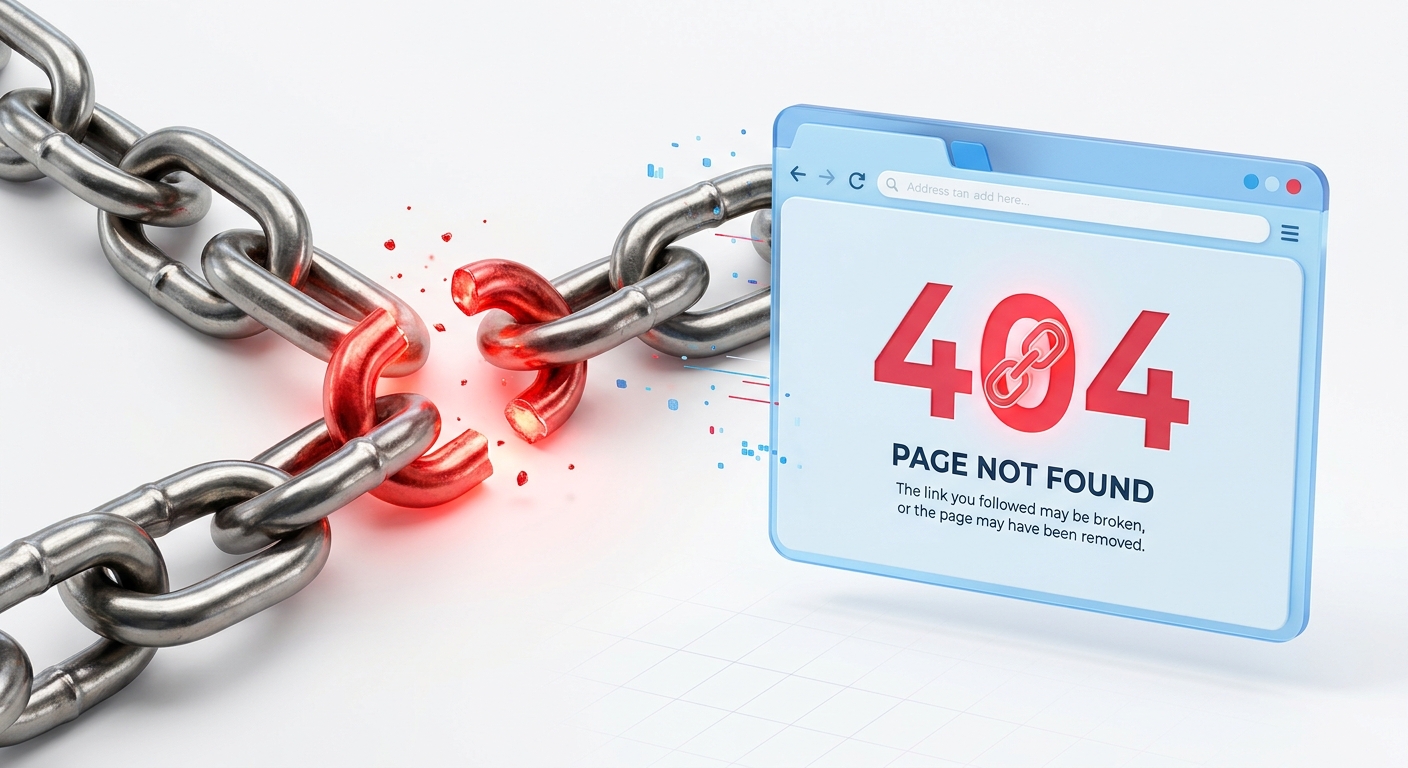
Imagine you are reading a really good article. You find a link that says "Click here to buy the product." You click it with excitement, but suddenly the screen shows a big, ugly error message: "404 Page Not Found."
How do you feel? Frustrated, right? You probably leave that website and never come back.
This is what we call a Broken Link. If your website has broken links, you are losing customers, losing trust, and most importantly, losing Google rankings.
In this very easy guide, I will show you exactly how to find broken links on your website and how to fix them in just a few minutes. Don't worry if you are a beginner; this is much easier than it sounds.
What is a Broken Link (404 Error)?
A broken link is simply a link that points to a webpage that no longer exists. When a user or a search engine clicks that link, the web server returns a status code called 404 Not Found.
This happens for many reasons. Maybe you deleted an old blog post but forgot to remove the links pointing to it. Maybe you changed the URL of a page (e.g., from `/contact` to `/contact-us`). Or maybe you linked to an external website (like an old news article) that has shut down.
Whatever the reason, a 404 error is a dead end. There are two types of broken links you need to worry about:
- Internal Broken Links: These are links on your own website pointing to other pages on your own website. (e.g., Page A links to Page B, but Page B is deleted).
- External Broken Links: These are links on your website pointing to other people's websites that have died.
Why Are Broken Links Bad for SEO?
You might think, "It's just one broken link, who cares?" But Google cares a lot. Here is why broken links are a nightmare for SEO:
1. Terrible User Experience
Google's number one goal is to keep users happy. If a user clicks a link on your site and hits a 404 error, they get frustrated and leave. Google tracks this behavior. If Google sees that users are leaving your site quickly (high bounce rate), it will think your site is low quality and push it down in the rankings.
2. Wasted Crawl Budget
Google uses an automated bot called "Googlebot" to scan the internet. It has a limited amount of time and resources to spend on your website every day. This is called "Crawl Budget." If Googlebot wastes its time crawling broken links and hitting 404 errors, it won't have time to find your new, important pages. Your website will take much longer to get indexed.
3. Loss of Link Juice
When a strong page on your site (like your homepage) links to another page (like a blog post), it passes "link juice" (authority) to that page. But if the link is broken, the link juice hits a dead end and disappears into the void. You are literally throwing away your SEO power.
How to Find Broken Links on Your Website
You cannot fix a problem if you don't know it exists. So, how do you find broken links?
You could manually click every single link on your website. But if you have 50 blog posts and each post has 10 links, that's 500 clicks! It would take days, and it's incredibly boring.
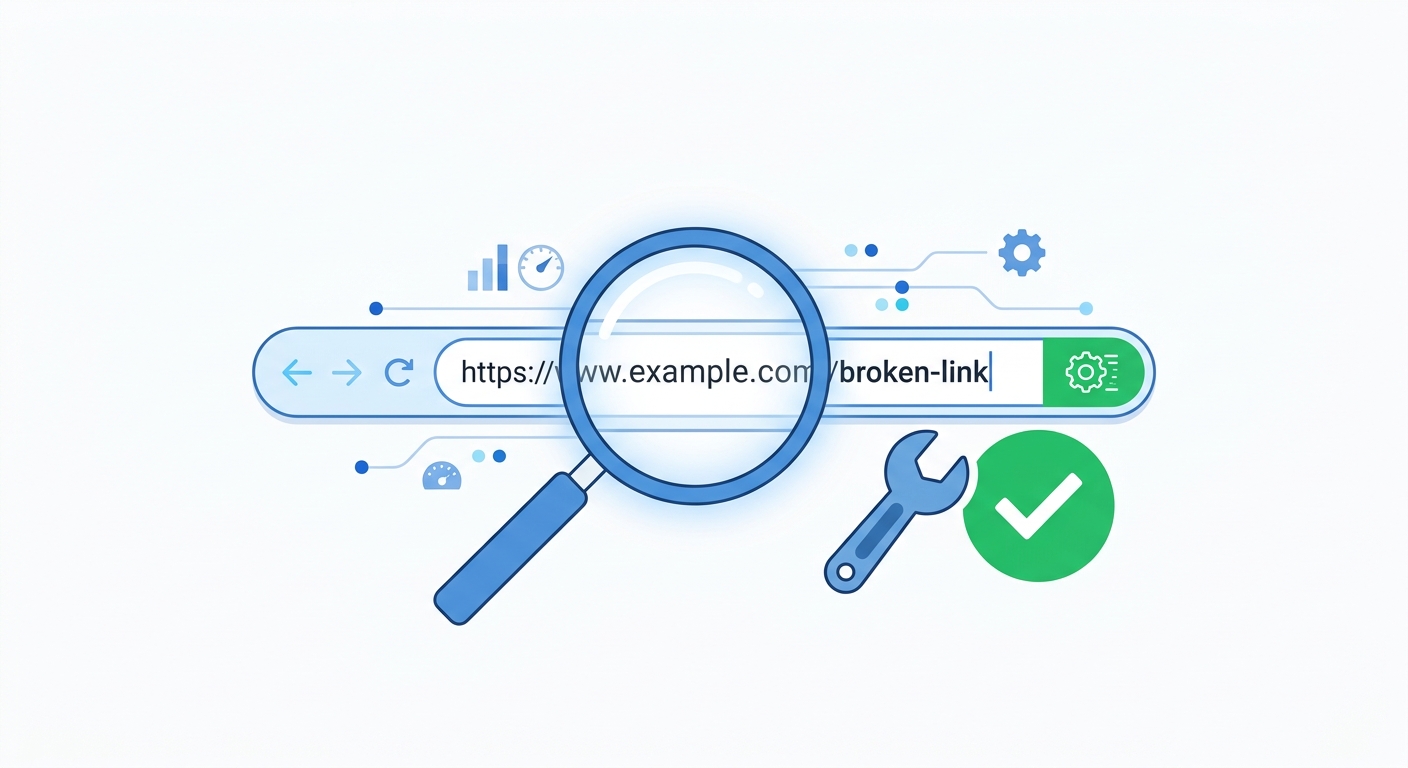
The smart way is to use a tool. We have built a Free Broken Link Checker right here on SEO Review Kit.
- Go to our Broken Link Checker tool.
- Enter your website's URL (e.g., seoreviewkit.com).
- Click "Check Links". The tool will scan your entire site in seconds.
- It will give you a complete list of every broken link, both internal and external.
How to Fix Broken Links (Step-by-Step)
Once you have the list of broken links from the tool, it's time to fix them. You have three options:
Method 1: Update the Link (The Best Way)
If the page still exists but just moved to a new URL, simply edit the blog post and change the old broken URL to the new working URL. For example, if you renamed `/contact` to `/contact-us`, update the link in your text.
Method 2: Use a 301 Redirect
What if you deleted a page, but other websites are still linking to it? You don't want to lose that traffic. You should set up a 301 Redirect.
A 301 Redirect is like a mail forwarding service. It tells the browser, "The page you are looking for is gone, but you should go to this new page instead." It automatically sends the user and the SEO juice to the new page.
If you are using WordPress, you can easily do this using a free plugin like "Redirection". Just enter the old broken URL and the new working URL, and click Add.
Method 3: Remove the Link
If the page is deleted forever and there is no similar page to redirect to, the easiest fix is to simply remove the link from your text. Keep the text, but remove the clickable hyperlink. It's better to have no link than a broken one.
What is the Difference Between 404 and 410 Errors?
You might hear about 410 errors. Both are broken links, but there is a small difference:
- 404 Not Found: The page is missing. It might come back later. (e.g., temporary server issue).
- 410 Gone: The page is permanently deleted and will never come back. Google crawls 410 pages much faster than 404 pages because it knows it's a dead end and it doesn't need to check again.
How to Prevent Broken Links in the Future
Fixing broken links is a great start, but you should also try to prevent them from happening again. Here are some simple tips:
- Don't change URLs: Once you publish a blog post, try not to change its URL. If you must change it, always set up a 301 redirect.
- Check links before publishing: Before you hit publish on a new article, click all the links you added to make sure they work.
- Do a monthly audit: Run your website through a Broken Link Checker once a month to catch any external links that may have died recently.
Conclusion
Broken links are a silent killer of SEO. They ruin the user experience and confuse Google. But the good news is, they are incredibly easy to fix.
By using our free Broken Link Checker, you can scan your site in seconds. Spend 10 minutes fixing these errors, and you will see a big improvement in your website's health and rankings.
Ready to check your website?
Find and fix 404 errors instantly with our free tool.
Go to Broken Link Checker