What is an IP Address?
Every device connected to the internet needs a unique identifier to communicate. This identifier is called an IP (Internet Protocol) address. Think of it as your home's mailing address, but for your computer, smartphone, or smart TV. Without an IP address, the internet wouldn't know where to send the data you request, such as loading a website, receiving an email, or streaming a video.
IPv4 vs. IPv6: What's the Difference?
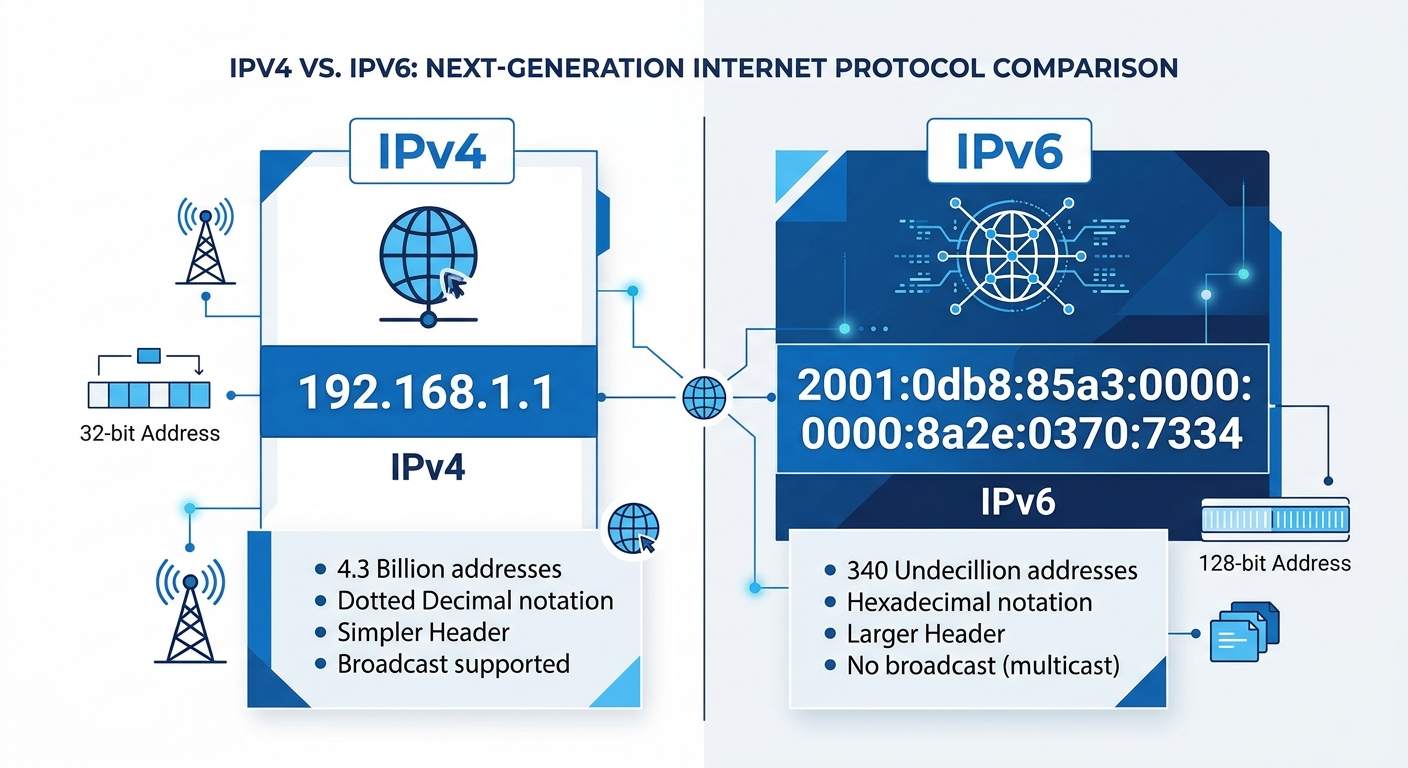
There are two main versions of IP addresses in use today. IPv4 is the older format and looks something like this: 192.168.1.1. It was designed to support about 4.3 billion addresses. However, as the internet grew, we ran out of IPv4 addresses. To solve this, IPv6 was created. It uses a longer format with letters and numbers, like 2001:0db8:85a3:0000:0000:8a2e:0370:7334. This provides an almost infinite number of unique addresses.
How to Use Our IP Address Checker (Step by Step)
Our tool is designed to be incredibly simple, even for people with zero technical knowledge. You don't need to install software or create an account. Here is how it works:
- Click the Button: Simply click the "Show My IP Address" button at the top of this page.
- Wait a Second: Our tool securely communicates with a global IP database to fetch your information.
- View Your Data: Instantly, you will see your Public IP, City, Region, Country, ISP, and Timezone.
How to Check Your IP Address on Windows (Step by Step)
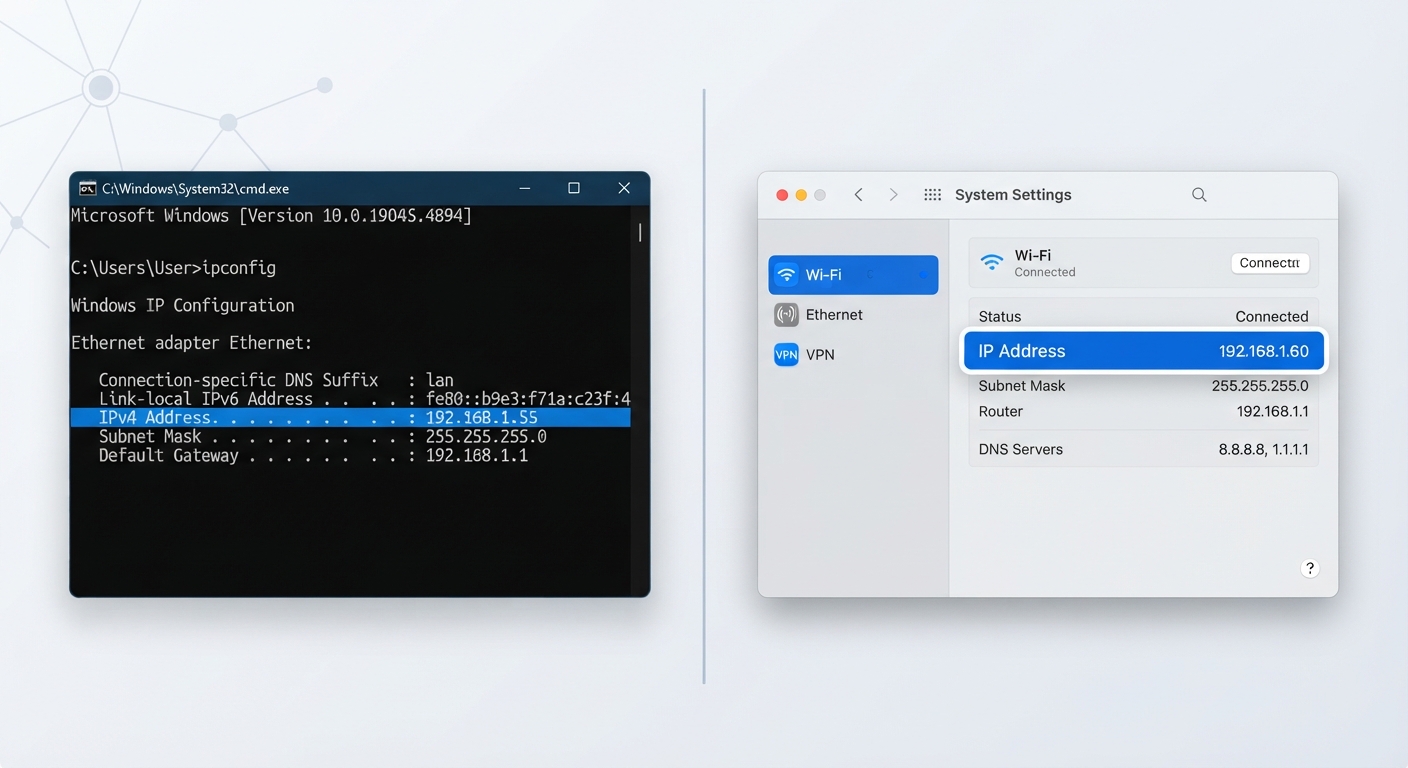
If you want to find your local (private) IP address on a Windows 10 or Windows 11 PC manually, follow these steps:
- Click the Start button and type cmd to open the Command Prompt.
- Type
ipconfigand press Enter. - Look for the "IPv4 Address" under your active network adapter (e.g., Wi-Fi or Ethernet). It usually looks like
192.168.x.x.
However, to find your public IP address (the one websites and hackers can potentially see), it's much easier to just use our free tool above.
How to Find Your IP Address on Mac OS (Step by Step)
For Apple users looking to find their local IP address, the process is just as easy:
- Click the Apple menu in the top left corner and select System Preferences (or System Settings).
- Click on Network.
- Select your active connection (Wi-Fi or Ethernet) on the left side.
- Click Advanced and navigate to the TCP/IP tab.
- You will see your IPv4 Address listed there.
Public IP vs. Private IP: What's the Difference?
Understanding the difference between a public and private IP is crucial for network management.
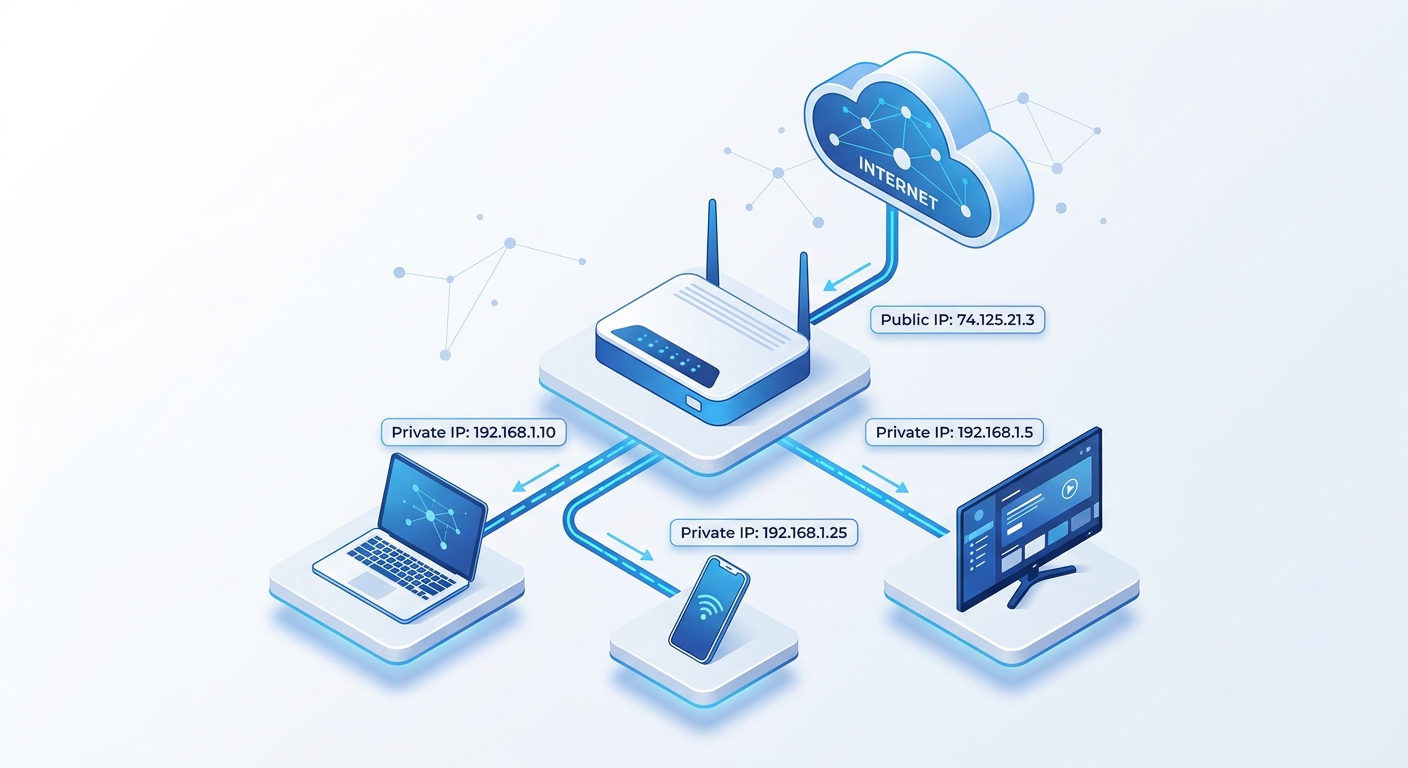
- Public IP: Assigned to your router by your Internet Service Provider (ISP). It is how the outside world (websites, servers) sees you. Our tool finds this IP. It is routable on the global internet.
- Private IP: Assigned to individual devices inside your home network (like your laptop and phone) by your router. These are not visible on the internet. They allow devices in the same house to talk to each other without needing public IPs.
How to Check Your Router or Modem IP Address
If you need to access your router's admin panel to change the Wi-Fi password or set up port forwarding, you need your router's IP. Most routers use a default gateway IP like 192.168.1.1 or 192.168.0.1.
You can find this by checking the "Default Gateway" in the Command Prompt (using ipconfig). It is different from the public IP address that our tool provides.
Why Do SEO Professionals Use an IP Address Checker?
You might wonder why an SEO tool site has an IP checker. Here is why it is important for webmasters:
- SEO & Domain Analysis: When analyzing backlinks or buying expired domains, knowing the server IP helps you avoid "bad neighborhoods." If a server hosts thousands of spammy sites on the same IP, your site might get penalized by association.
- Checking VPNs: SEOs often use VPNs to check search results from different countries. You can use our tool to verify that your VPN is working and not leaking your real IP.
- Troubleshooting: If your internet is not working, checking if your IP changes can help diagnose the issue with your ISP.
How to Hide Your IP Address
If you are concerned about privacy, you can hide your IP address using a Virtual Private Network (VPN). A VPN routes your traffic through a server in another location, masking your real IP and replacing it with the server's IP. This keeps your actual location and ISP hidden from the websites you visit.
Explore More Free SEO Tools
Written and reviewed by: Habib Ur Rehman, Full-Stack Web Developer & SEO Specialist.
Last Updated: November 2, 2026.