What is a Local IP Address?
Every time you connect a device (like a laptop, smartphone, or smart TV) to your home Wi-Fi, your router assigns it a unique identifier. This is called a Local IP Address (or Private IP). It usually looks like 192.168.1.5 or 10.0.0.12.
This IP is only visible inside your home network. It allows your devices to talk to each other and to the router. It is not visible on the public internet.
Why is my Local IP hidden?
You might notice that the tool above shows a warning about your Local IP. This is because modern web browsers (like Google Chrome, Apple Safari, and Mozilla Firefox) have implemented strict privacy features.
In the past, websites could use a technology called WebRTC to see your local IP address. Hackers could exploit this to track users. To stop this, browsers now hide your Local IP. Therefore, the only safe way to find your Local IP is manually through your device settings.
What is a Router IP Address (Default Gateway)?
While your device has its own local IP, the router itself also has an IP address. This is called the Default Gateway or the Router IP.
Think of your router as the main door to your house. If your devices want to reach the internet, they must first send their data to the router. The Router IP is the address of that main door. The most common router IPs are:
192.168.1.1(Very common for TP-Link, Asus)192.168.0.1(Very common for D-Link, Netgear)10.0.0.1(Common for Xfinity, some Apple routers)
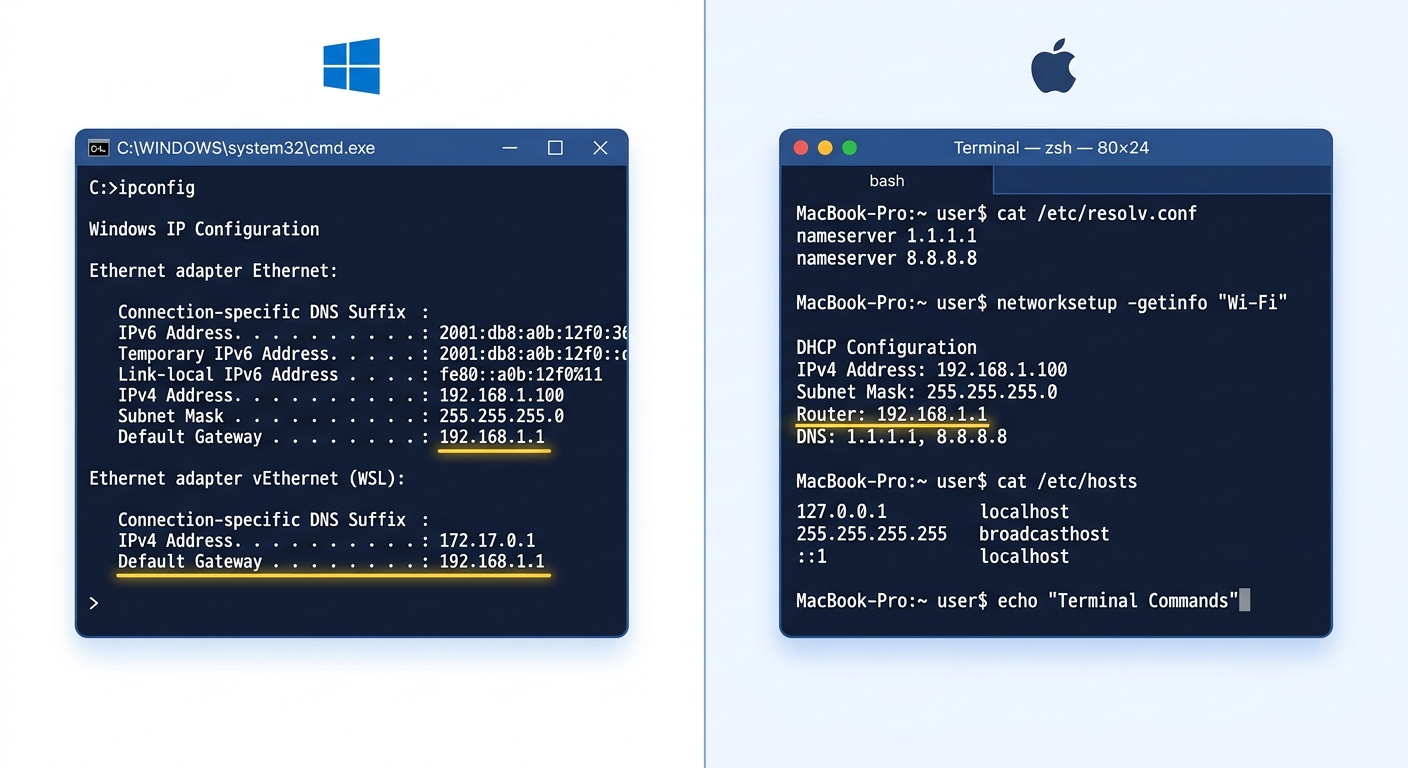
How to Find Your Router IP Address (Step by Step)
If you need to access your router settings, you must find its Default Gateway IP. Here is how to do it on different devices:
On Windows 10 / 11 (Command Prompt)
- Click the Start button and type cmd to open the Command Prompt.
- Type
ipconfigand press Enter. - Look for your active network connection (Wi-Fi or Ethernet).
- Find the line that says Default Gateway. The number next to it is your Router IP (e.g., 192.168.1.1).
On Mac OS (System Preferences)
- Click the Apple menu and select System Preferences.
- Click on Network.
- Select your active connection (Wi-Fi) on the left.
- Click the Advanced button.
- Go to the TCP/IP tab and look for the Router field.
On Android Devices (Settings)
- Open the Settings app.
- Tap on Network & Internet > Wi-Fi.
- Tap the gear icon next to your connected Wi-Fi network.
- Tap on Advanced or scroll down. Look for the Gateway or Router address.
On iPhone / iPad (iOS)
- Open the Settings app.
- Tap on Wi-Fi.
- Tap the blue "i" icon next to your connected network.
- Scroll down to the IPv4 Address section and look for Router.
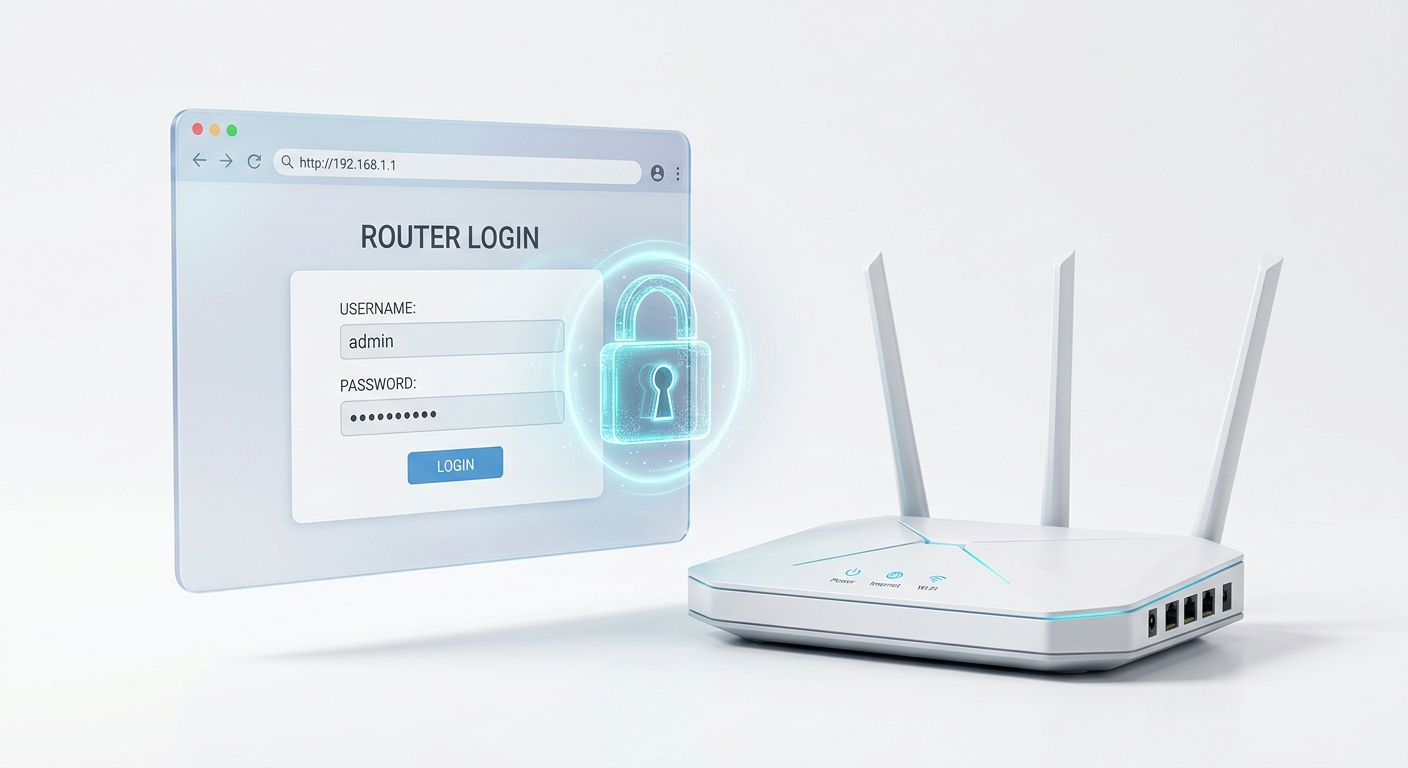
How to Access Your Router Admin Panel
Once you have your Router IP (e.g., 192.168.1.1), follow these steps:
- Open any web browser (Chrome, Safari, Edge).
- Type the Router IP into the address bar and press Enter.
- A login page will appear. You will need the router's username and password.
- If you never changed it, the default credentials are usually admin for both username and password. (Check the sticker on the back of your router).